

Adding Products to the Cart
This guide explains how to add products to the cart during a sale in the EasyPay app, and how to review its contents before moving to payment.
Adding a product to the cart
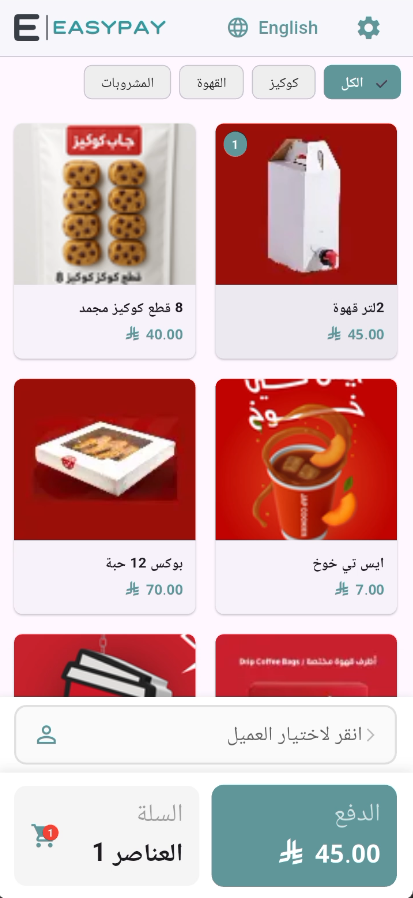
Browse products from the main screen, and use the category tabs at the top (e.g. All, Cookies, Coffee, Drinks) for quick access to a specific category.
Tap any product card to add it to the cart directly — the cart total and amount at the bottom update instantly.
Tap the same product card again to increase its quantity in the cart.
Reviewing the cart
A summary at the bottom shows the cart item count (“Cart”) and the total amount (“Payment”) live with every change.
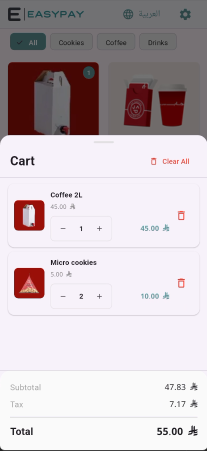
Open the cart details to review every added product, its quantity, and its price.
Any product's quantity can be adjusted, or it can be removed, from within the cart details.
Next step
After confirming the cart contents, move on to complete payment — the full steps are documented in the Complete Sales Cycle page.