

Branches
Each branch is a self-contained point-of-sale configuration: its name, the employees allowed to access it, the products displayed in it, its pricing and discount behaviour, and the payment methods available. This is where you control how the cashier app behaves at each location individually.
Why use Branches?
Open more than one selling location, each with its own settings.
Decide exactly which employees are allowed to access each branch.
Restrict the products shown in one branch without affecting others.
Set discount policies and price lists independently per branch.
Choose which payment methods are available at each branch (cash, EasyPay…).
How to access branch settings
From the system's home page, click the “Branches” icon, then click the card of the branch you want to open its settings.
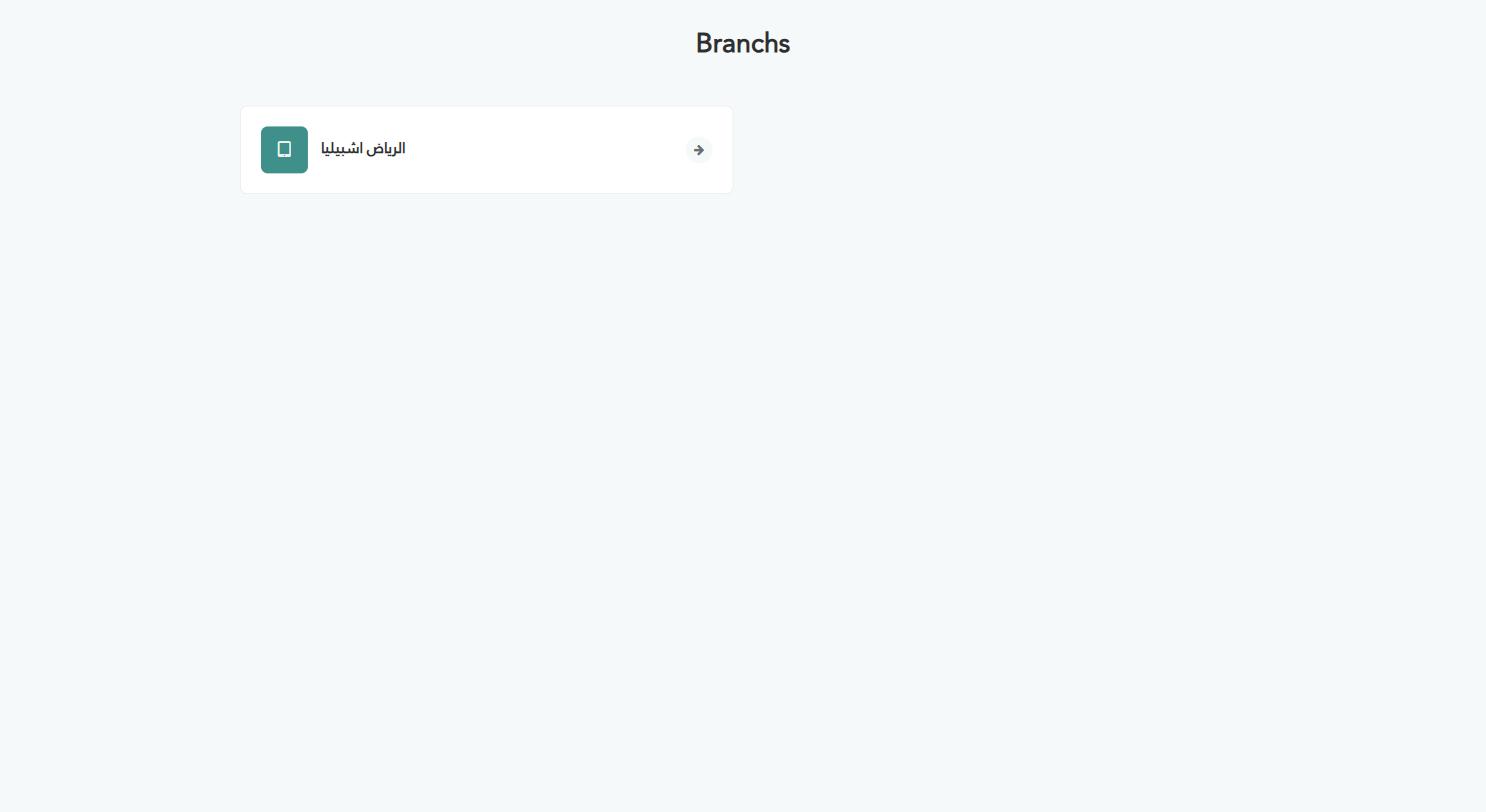
Branch settings tabs
General — name, status, and employee login.
Order & Receipt — order behaviour and receipt printing.
Products — displayed categories and product display style.
Pricing — price lists and discount policies.
Payment — available payment methods and split buttons.
Every change on this screen applies only to the open branch, and does not affect any other branch.
1. General
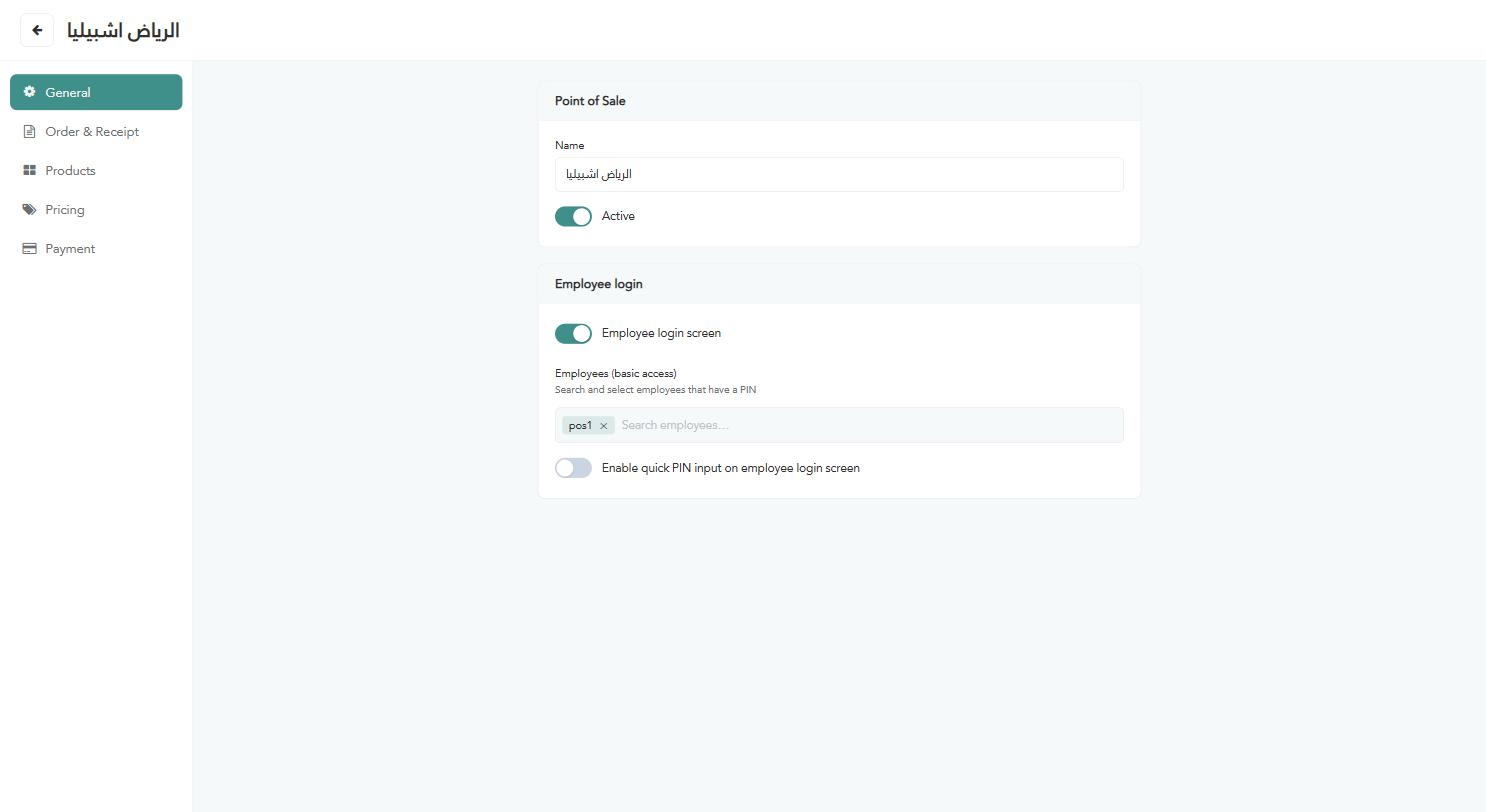
“Name” — the branch name as shown in lists and reports.
“Active” — turn it off to disable the branch without deleting its settings.
Employee login
“Employee login screen” — enable it to require every user to identify themselves before starting a sale.
“Employees (basic access)” — search for employees who have a PIN and add them; each added employee shows as a removable chip.
“Enable quick PIN entry” — lets the employee enter their code directly on a simplified keypad instead of a full login form.
An employee does not appear in this search unless they already have a PIN set from the Employee Hub page.
2. Order & Receipt
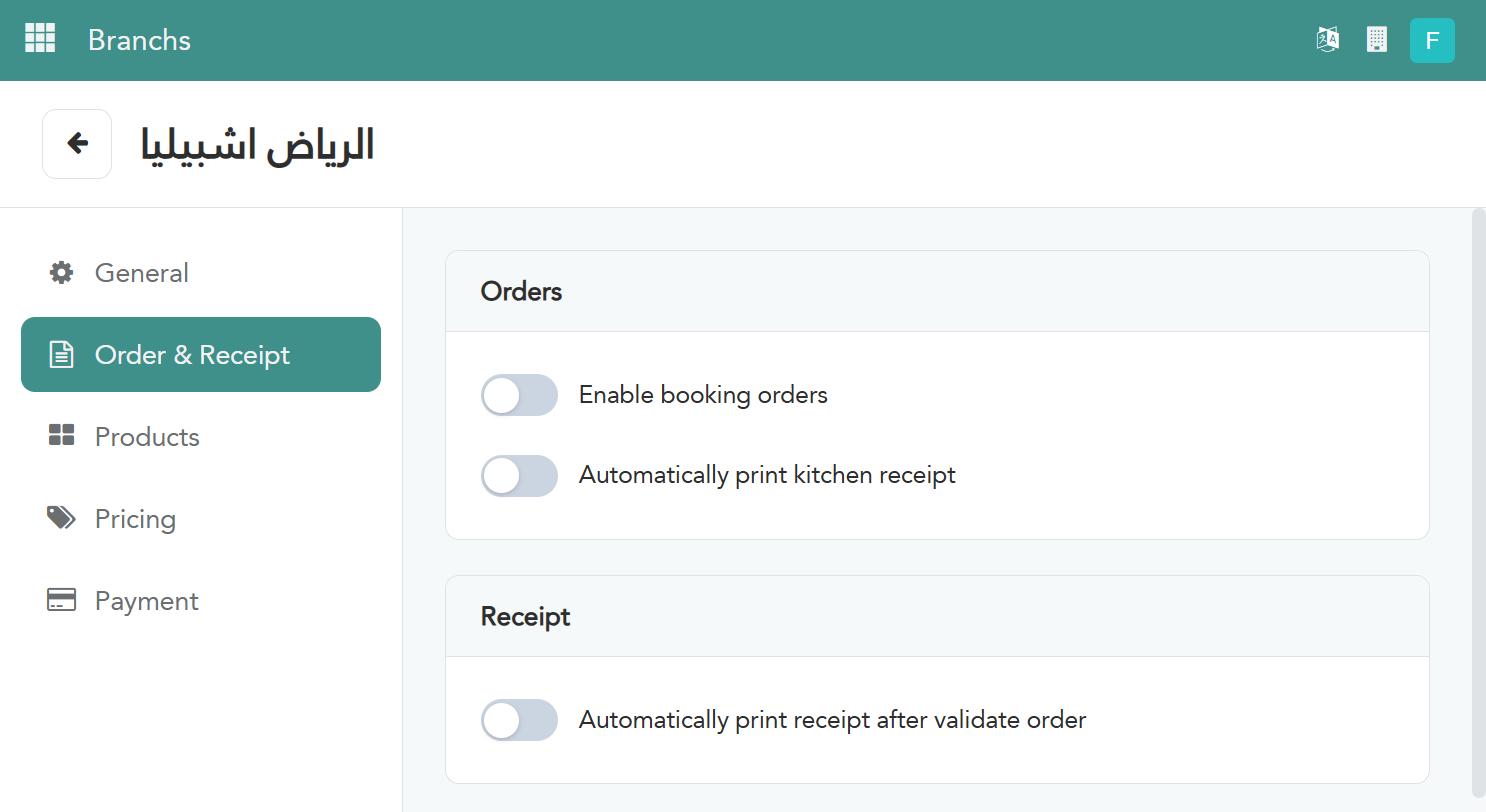
Orders
“Enable booking orders” — turns on a dedicated flow for advance reservations.
“Automatically print kitchen receipt” — prints a preparation slip in the kitchen as soon as an order is confirmed.
Receipt
“Automatically print receipt after order confirmation” — prints the customer's receipt the moment the sale is completed, with no manual request.
3. Products
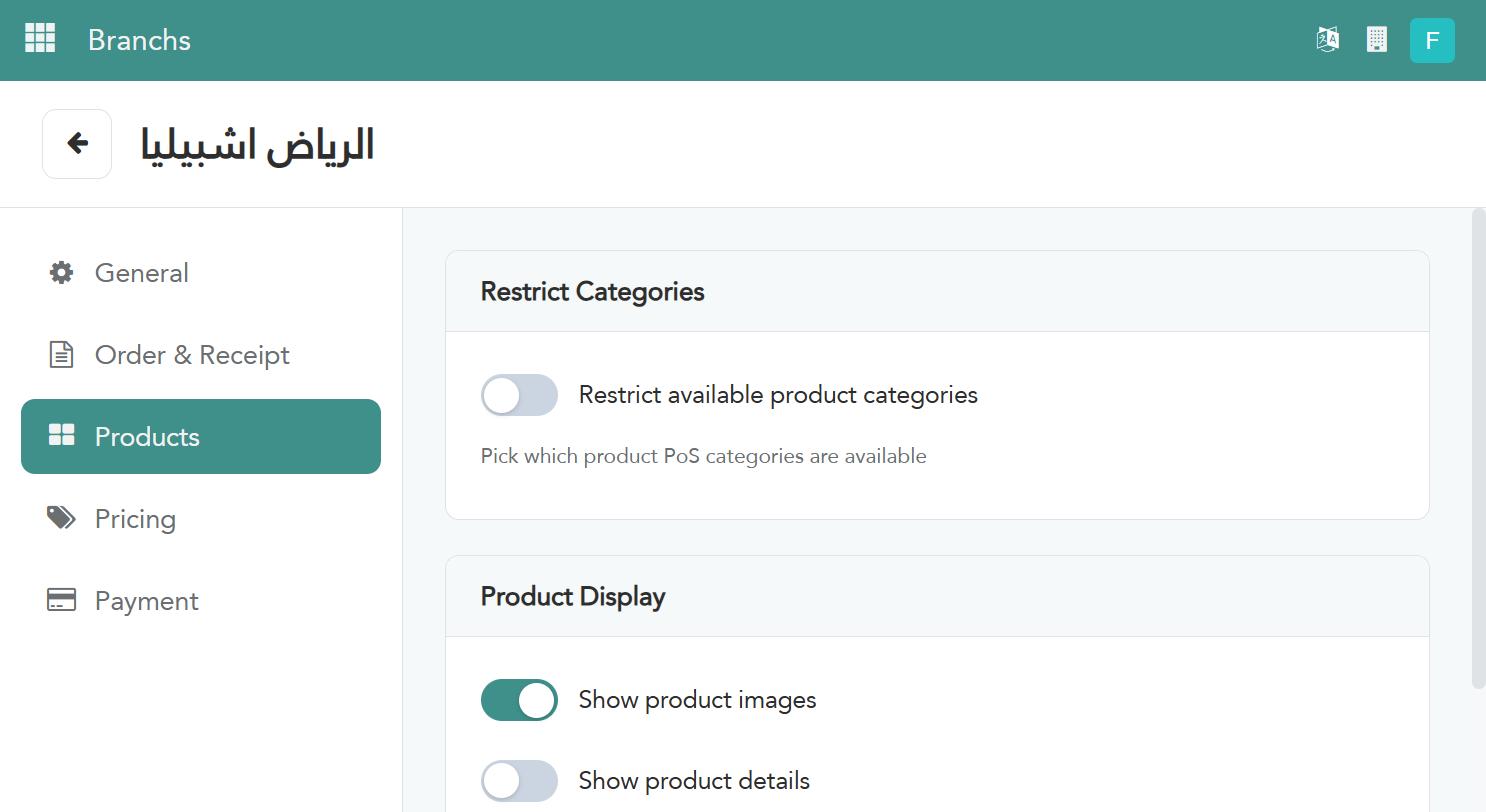
Restrict categories
“Restrict available product categories” — enable it to show only specific categories in this branch.
“Choose available POS product categories” — appears once restriction is enabled; pick the categories allowed to display.
Product display
“Show product images” — displays each product's image on the cashier screen.
“Show product details” — lets the cashier open extra details about a product before adding it.
“Show ‘All’ category tab” — adds a tab showing every product together, alongside the category tabs.
Warning: Restricting categories hides any product outside the chosen categories from the cashier at this specific branch, even if it is published in the general catalog.
4. Pricing
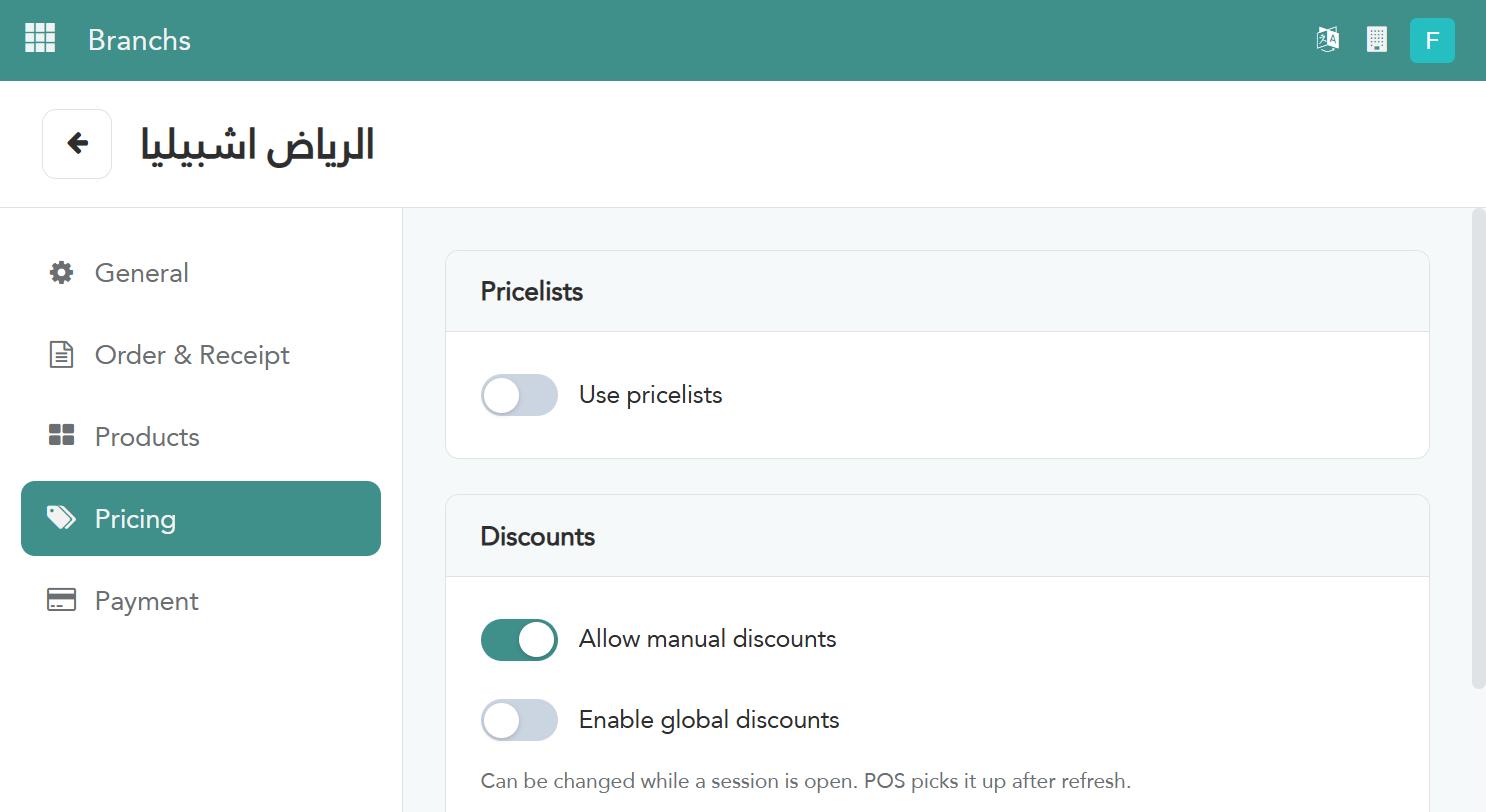
Price lists
“Use price lists” — enables pricing that varies by the applied price list instead of one fixed price.
Discounts
“Allow manual discounts” — lets the cashier apply a discount to a single product line.
“Enable global discounts” — allows one discount applied to the entire order total.
“Show price list selector on products screen” — adds a button to switch the price list directly during a sale.
Changes on this tab may not reflect on an already-open cashier session immediately — the point-of-sale app applies them after the page is refreshed or a new session is opened.
5. Payment
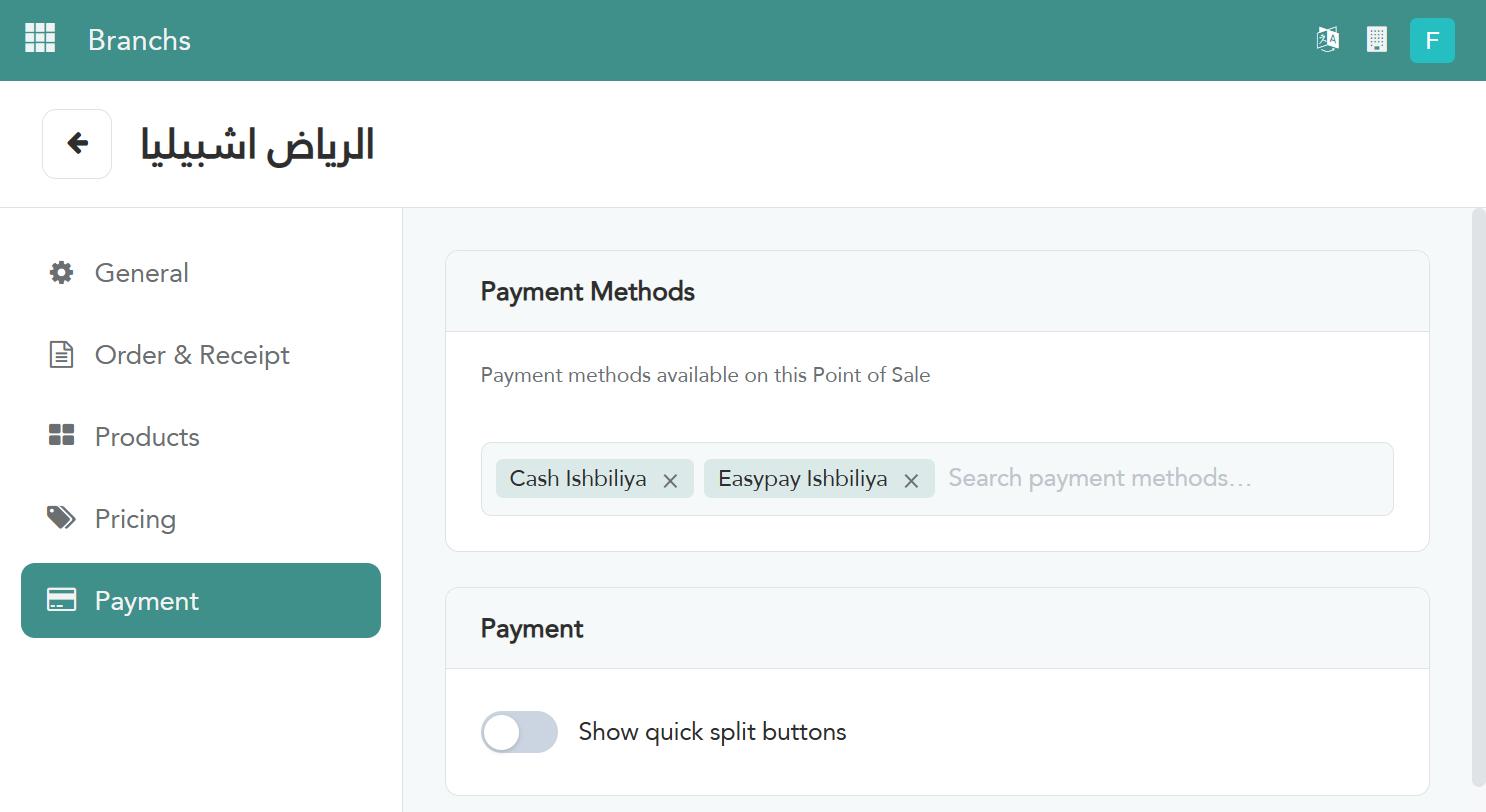
Payment methods
The payment methods currently enabled for this branch appear as chips (for example: Cash, EasyPay), each with a “Remove” button beside it.
Use the “Search payment methods…” field to find and add another method.
Payment
“Show quick split buttons” — adds ready-made buttons to split the bill among a number of people in one tap.
Warning: Removing a payment method currently in use at an active branch stops the cashier from accepting it immediately — make sure an alternative is available before removing it.