

Category / Products Discount
A percentage discount on entire POS categories, or on specific products.
Creating the offer
Click “New Promotion” and choose “Category / Products Discount”, then fill in the common fields (name, offer period, and point of sale) as on the “Discount & Promotion” page, and the following “Offer Rules” fields:
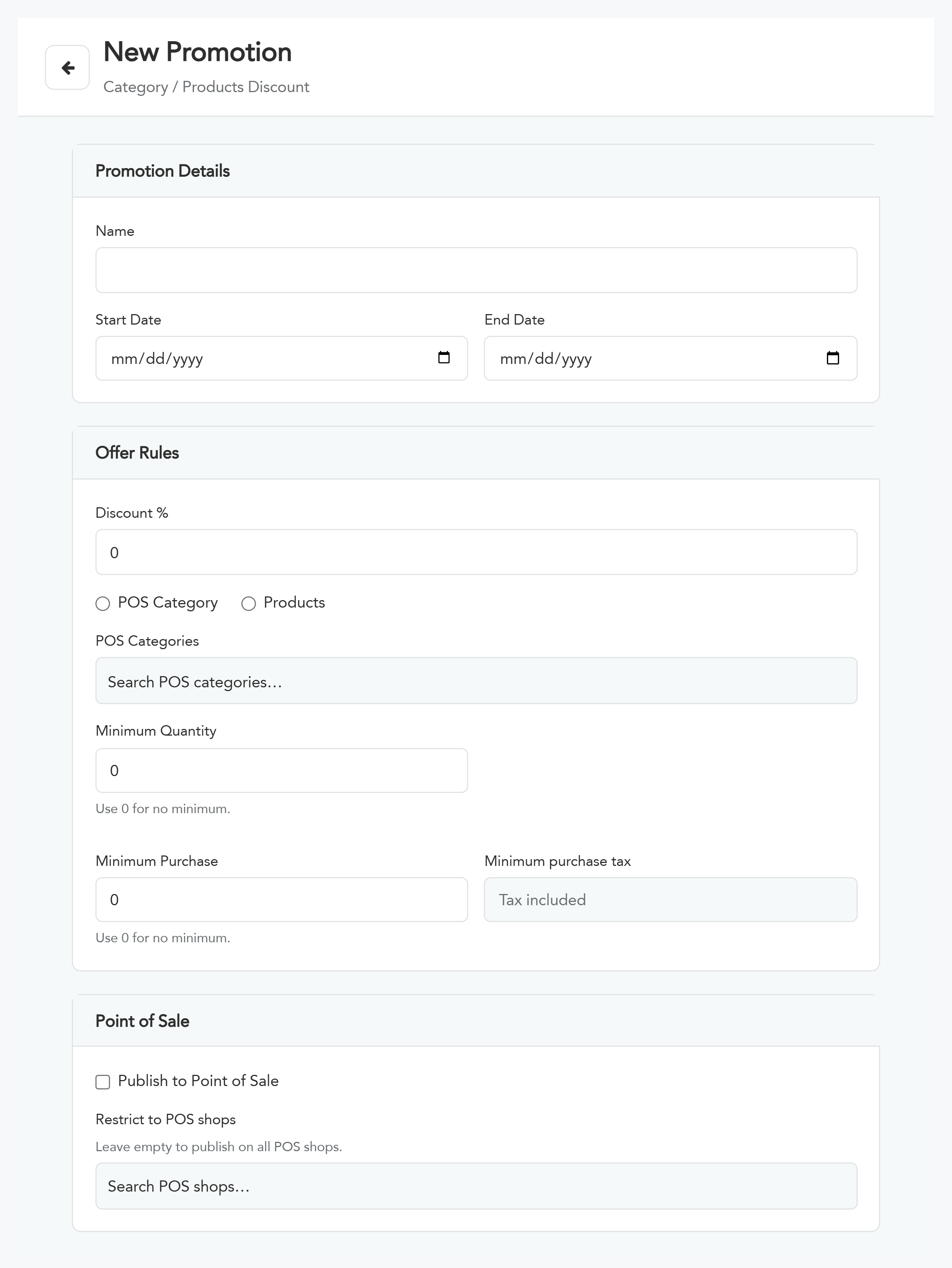
“Discount %” — the discount percentage on what is covered by the offer.
“POS Category / Products” — choose the discount scope: entire categories, or specific products.
Choose what the discount covers from the list or by searching, and use “Add all” to add everything or “Clear all” to empty the selection.
“Minimum Quantity” — the lowest quantity to apply the discount.
“Minimum Purchase” — the lowest order amount to apply the discount.
Note: In limit fields, enter 0 for no limit. The “Minimum Purchase” is calculated tax-inclusive.
Previewing the offer's effect
Below the form is a “How it applies” section that shows the discount's effect directly on the selected products. Example:
50% discount on every selected product.
Fresh orange juice at 14 SAR ← 7 SAR discount (50%).
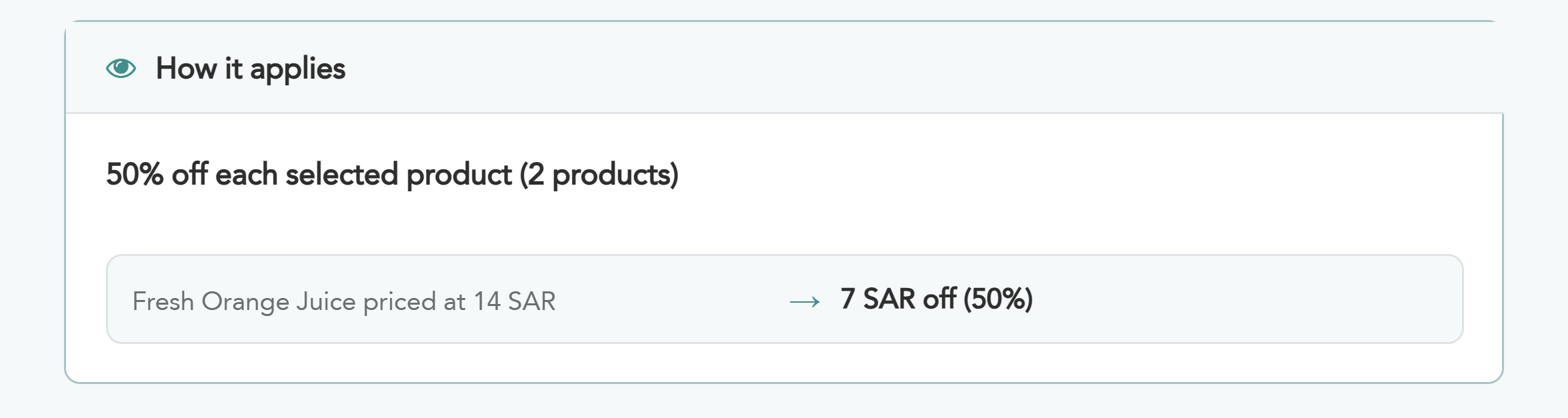
Review the preview to make sure the setup is correct before clicking “Save”.