

Taxes
This is where the tax rates applied to sales and purchases are defined, which are then selected per product from its page in the Products section.
Browsing taxes
The screen shows a table of the defined taxes:
🖼️ Screenshot: The taxes table with the name, type, rate and inclusion state — to be added.
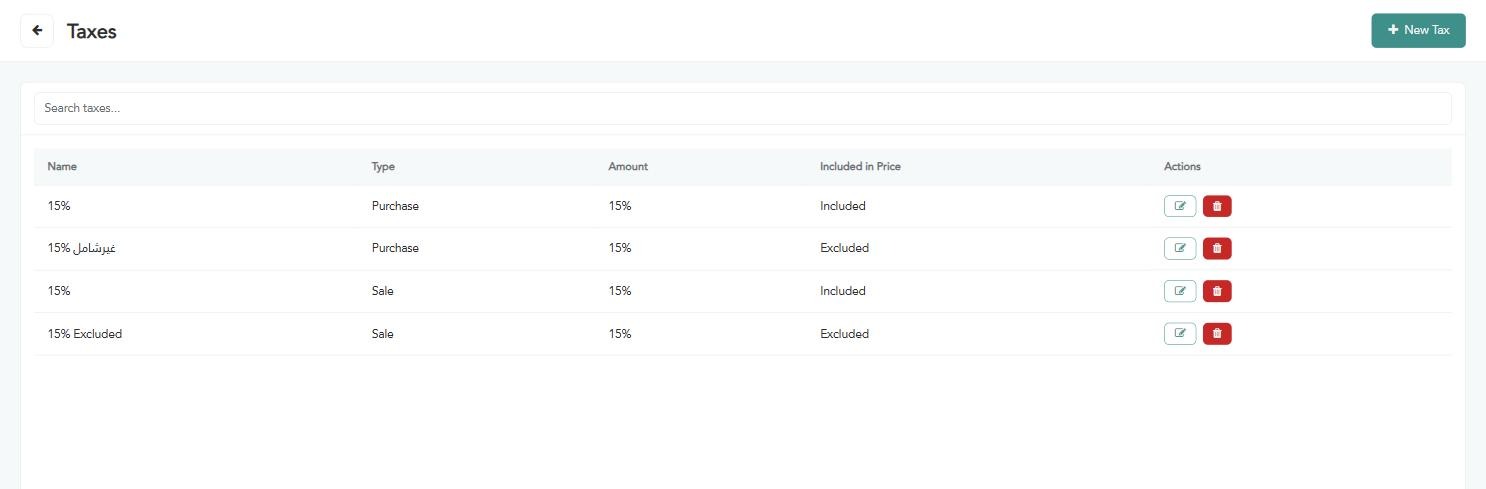
Name — the tax name as it appears when selecting it on a product.
Type — “Sales” for tax collected from the customer, “Purchases” for tax paid to the supplier.
Amount — the tax percentage.
Included in price — whether the entered price already contains the tax or the tax is added on top.
Creating a new tax
Click “New tax”. The following window appears; fill in the fields according to the instructions below:
🖼️ Screenshot: The tax window with the name, type, amount and inclusion state — to be added.
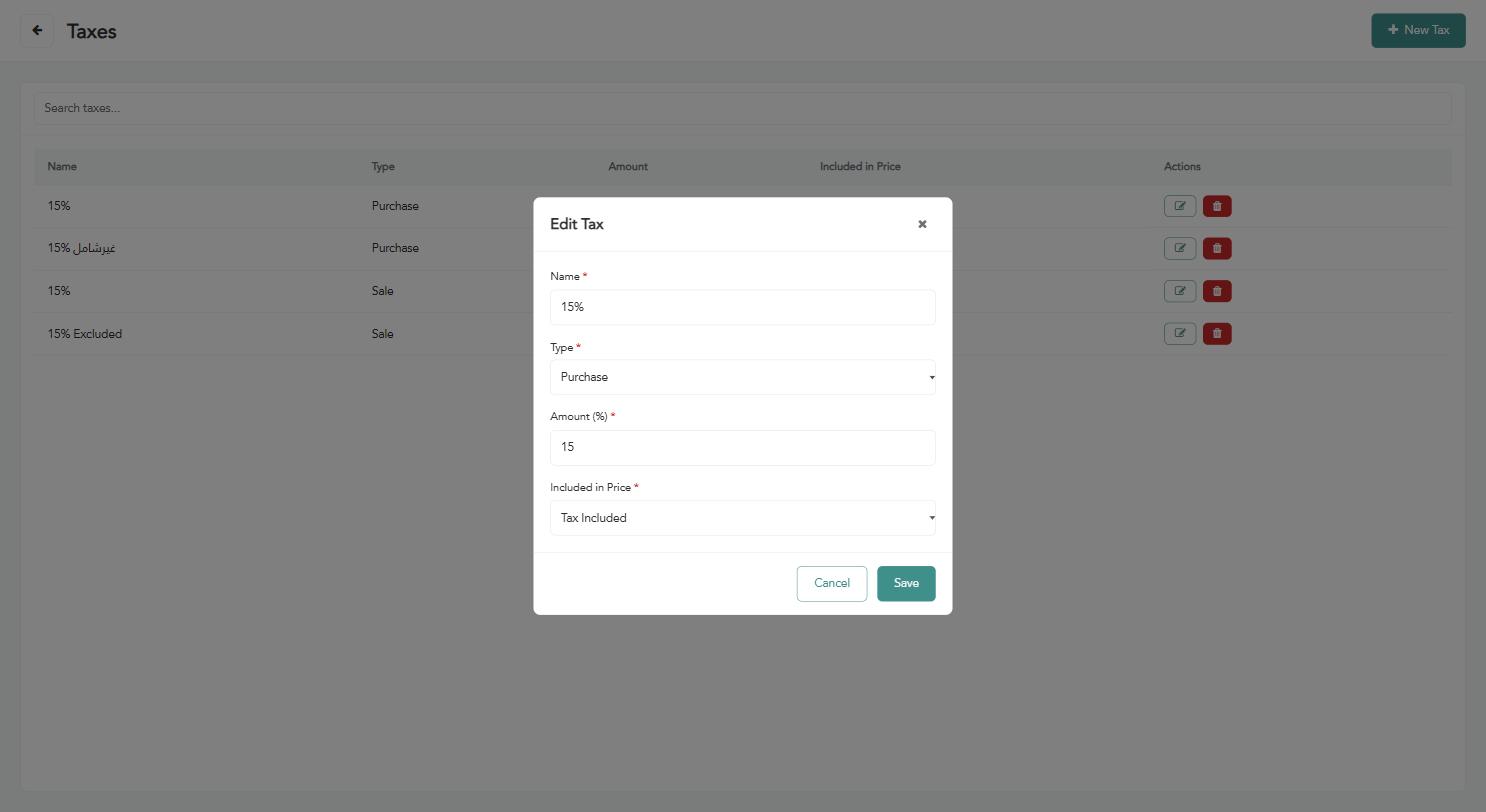
“Name” (required) — a clear name identifying the tax (for example: 15%).
“Type” (required) — “Sales” or “Purchases”.
“Amount (%)” (required) — the percentage (for example: 15).
“Included in price” (required) — choose “Tax included” if the displayed price already contains it, or “Excluded” to add it on top of the price.
Click “Save”.
The practical difference: at a price of 100 with a 15% rate — excluded means the customer pays 115, while included means they pay 100 with the tax calculated within it.
Warning: Changing the rate of a tax already in use affects the pricing of every product linked to it. Review the impact before saving.